The fastest way to open a HEIC photo on Windows 11 is to convert it to JPG in your browser — no software, no Store purchase. If you'd rather view HEIC natively in the Photos app, Windows needs two extensions from the Microsoft Store, and one of them usually isn't free. Below are both paths and when each makes sense.
Why Windows 11 won't open HEIC
HEIC is the format iPhones and iPads have saved photos in by default since iOS 11. Technically it's an HEIF container wrapping an image that's compressed with the HEVC video codec (also called H.265). That's why a HEIC photo is roughly half the size of the same shot saved as JPEG — handy for the phone's storage.
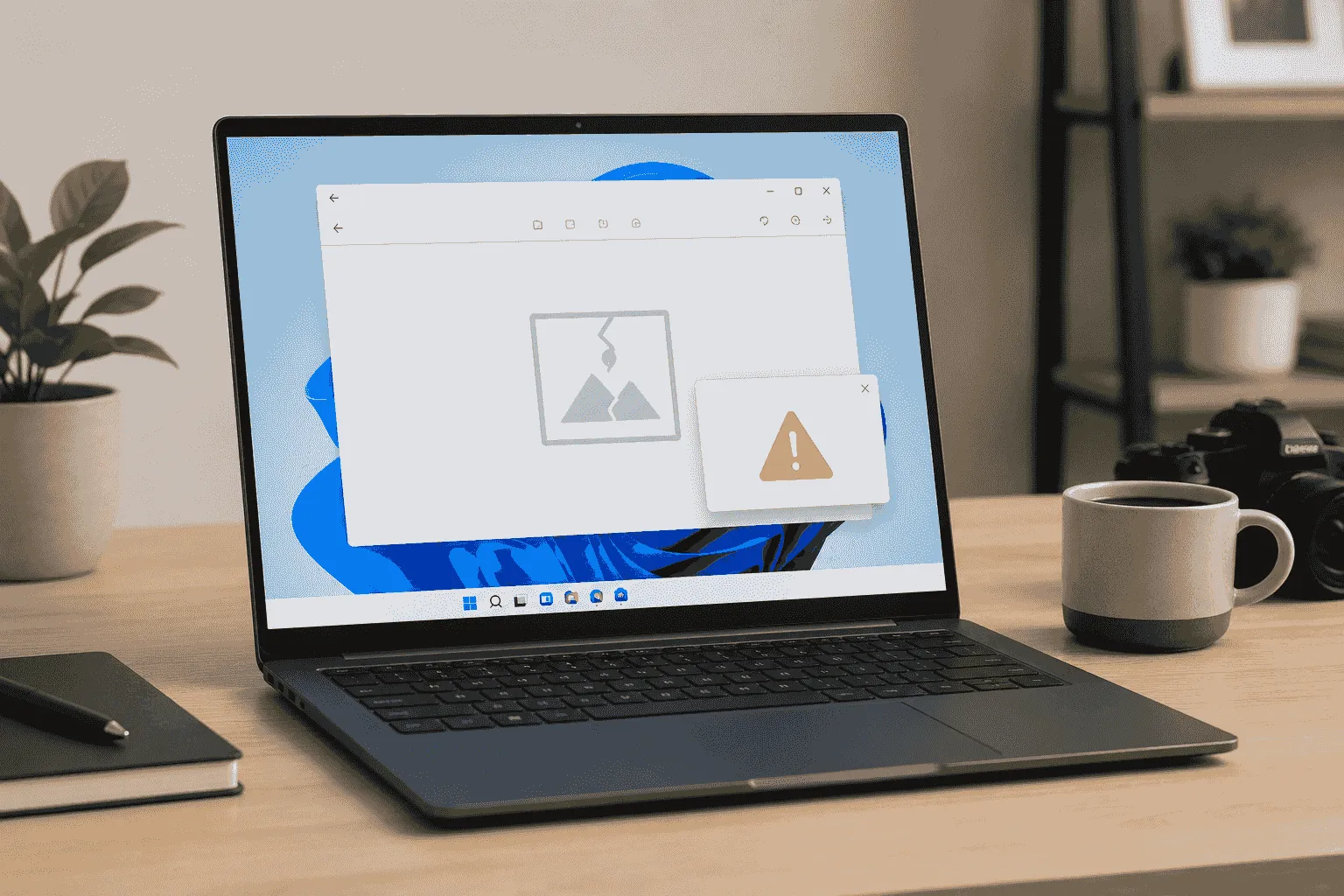
The friction starts on the desktop. Windows 11 doesn't always ship the HEVC decoder, so a photo straight off an iPhone often won't open at all, and File Explorer shows a blank icon where the thumbnail should be. The file isn't corrupted — your PC simply lacks the decoder.
Option 1 — the official Microsoft Store codecs (one is paid)
To teach the Photos app to open HEIC, you need two extensions:
- HEIF Image Extensions — free; it handles the container itself.
- HEVC Video Extensions — it decodes the compressed contents, and this is the one the Microsoft Store typically sells for around one US dollar.
HEIF on its own isn't enough: without HEVC, Photos still throws a format error. Some PC manufacturers bundle a free OEM build of the HEVC extension, but it's available only on certain machines, and installing it sometimes greets you with "this app won't work on your device."
There's one more catch: even with both extensions in place, some people find Photos still won't open HEIC because of how hardware decoding is handled on their GPU. Then it's back to reinstalling codecs or finding a workaround.
The takeaway: it's the official route, but a frictional one — a paid codec, a dependency on your hardware, and unpredictable results. If opening HEIC inside the built-in app isn't essential, there's an easier way.
Option 2 — convert HEIC to JPG online (nothing to install)
If the goal is simply to view, email, or upload a photo somewhere that rejects HEIC — a job-application portal, a visa-photo uploader, or a CMS that only accepts JPG — converting to JPG is the path of least resistance. Nothing to install; it all runs in the browser.
- Open the Sevio converter.
- Drag in one or more
.heicfiles (a whole ZIP archive works too). - Choose JPG as the target format.
- Download the results — one by one or as a single ZIP.
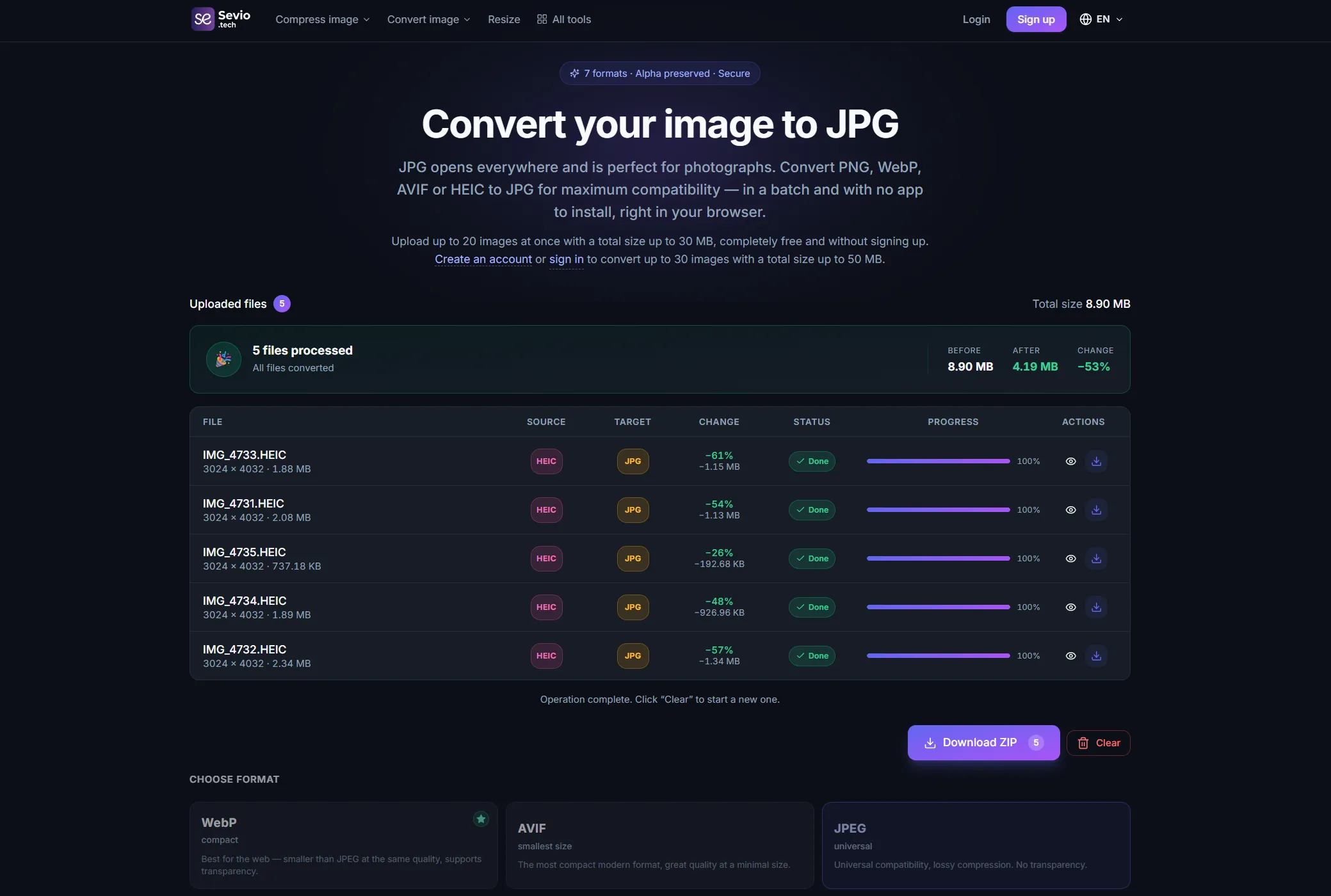
A JPG opens anywhere — in Photos, in Word, in a browser, on a phone, or at the print shop — with no codecs at all. Same result you were after, minus the paid extensions and the troubleshooting.
Which option to choose
- A one-off view or share — convert to JPG online. Fast and free.
- A whole camera roll of HEIC — still online: batch processing returns everything as one ZIP.
- You shoot on iPhone constantly and want HEIC right in Photos — it's worth installing the Store codecs once. Just budget for the paid HEVC piece and the occasional glitch.
- You never want to deal with this again — switch your iPhone to capture JPG directly (Settings → Camera → Formats → Most Compatible).