The quickest way to convert HEIC to JPG on Windows is to do it right in your browser — nothing to install, and batches work too. And if HEIC keeps getting in your way, you can switch your iPhone to shoot JPG so you never have to convert again. Here are both routes.
Convert online in 3 steps
This is the fastest option when you need to hand a HEIC photo to something that won't accept it — a web form, a chat app, or a coworker's Windows PC.
- Open the Sevio converter.
- Drag in one or more
.heicfiles (a whole ZIP archive works too). - Pick JPG and download the result — one by one or as a single ZIP.
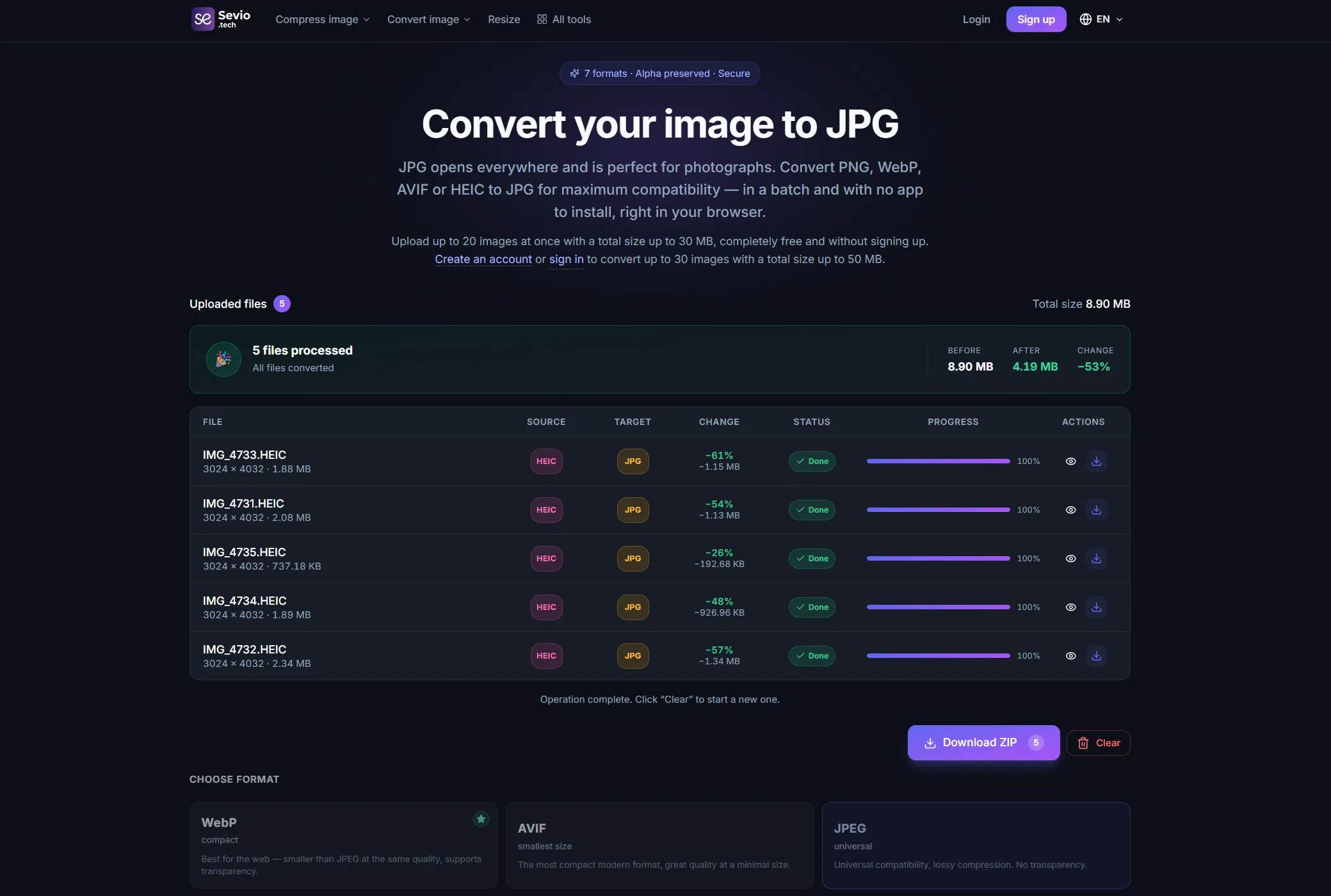
Everything runs in the browser: JPG and WebP files up to 20 MB are processed on your own device and never sent to a server.
How to shoot JPG directly on iPhone
If HEIC is a constant nuisance, the simplest fix is to switch the camera so the phone saves a compatible JPG from the start:
Settings → Camera → Formats → Most Compatible.
From then on, new shots are JPG and there's nothing left to convert. Your existing HEIC files stay put — convert those online whenever you need to.
Batch-convert many HEIC at once
If a whole gallery of HEIC has piled up, don't convert them one at a time. Load all the files (or a ZIP archive) into the converter at once — it processes the batch and returns everything as a single ZIP. Handy when you need to convert an entire album before uploading or sending it.
HEIC or JPG: which to keep
- HEIC — smaller at the same quality (saves space on the phone), but opens poorly outside Apple's ecosystem.
- JPG — slightly larger, but opens anywhere: Windows, Android, the web, print, any messenger.
The rule of thumb: HEIC is fine for storing on the iPhone, but for sending or uploading anywhere, convert to JPG — or just shoot in it from the start.