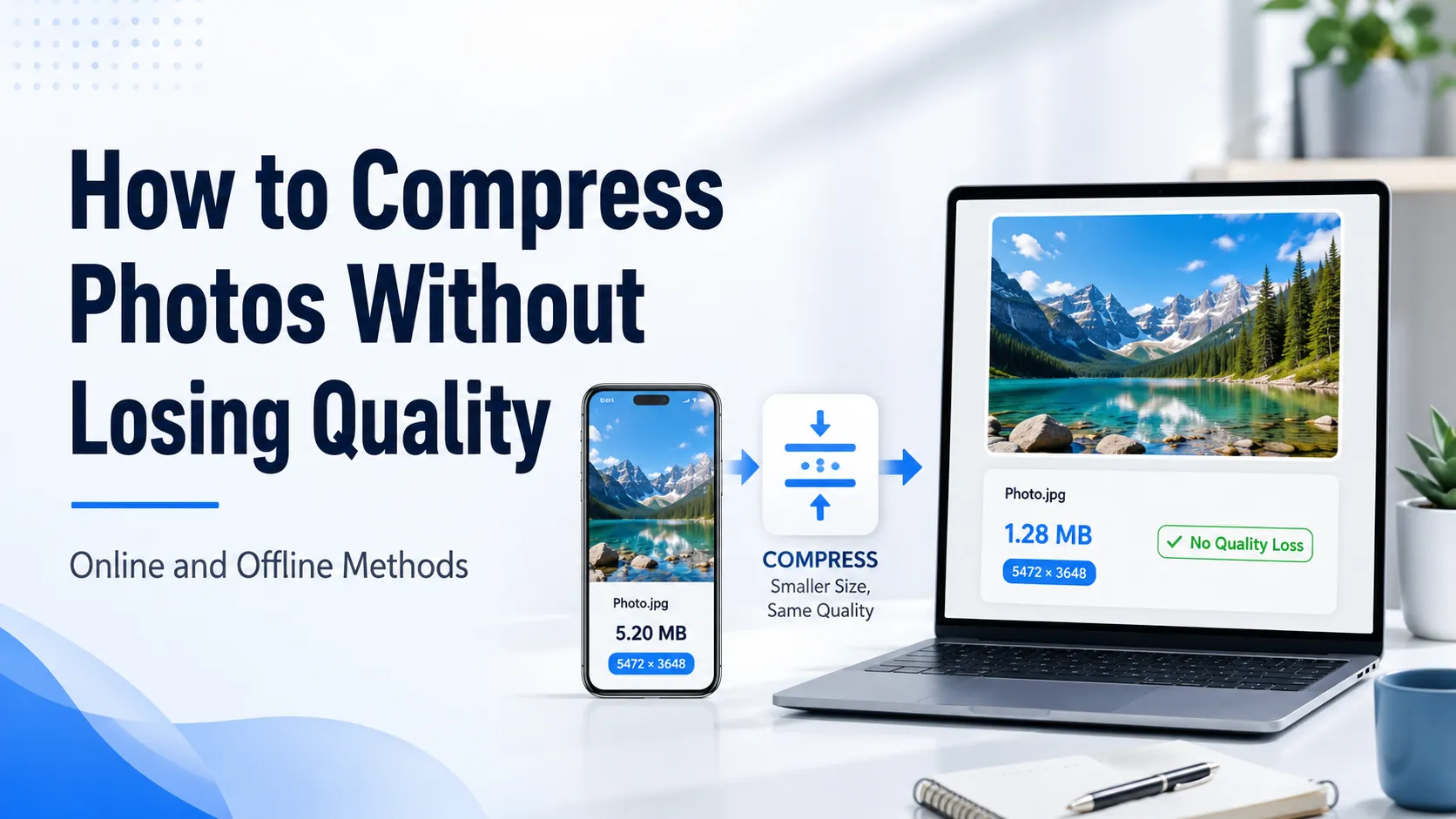
You can compress a photo without losing quality, but it's worth being precise: in practice that almost always means without any visible loss. True lossless compression saves very little, while visually lossless compression trims 30–60% of the file size with a difference no eye can catch. Here's how the two differ and how to do it right.
"Without losing quality" — what it actually means
The phrase hides two different things:
- Lossless (genuinely no loss). Every pixel after compression is identical to the original. That's how PNG optimization and lossless WebP work. The downside: savings are small — single-digit percentages, not multiples.
- Visually lossless. Light compression at around 90% quality. Technically some data is discarded, but you can't tell the original and the result apart by eye — and the file gets noticeably lighter.
For photographs you almost always want the second one. A photo is smooth gradients and sensor noise, where a little compression is invisible yet buys a big size win. Chasing true lossless for a snapshot makes no sense: you'd keep a heavy file for a difference nobody will ever see.
How to compress a photo with no visible loss
- Open the Sevio compressor.
- Drop one or more photos (JPG, PNG, WebP — a ZIP archive works too).
- Pick the gentle mode — it compresses while preserving quality (≈90%), with no visible loss.
- Download the result and compare "before → after": the percentage saved is shown right next to it.
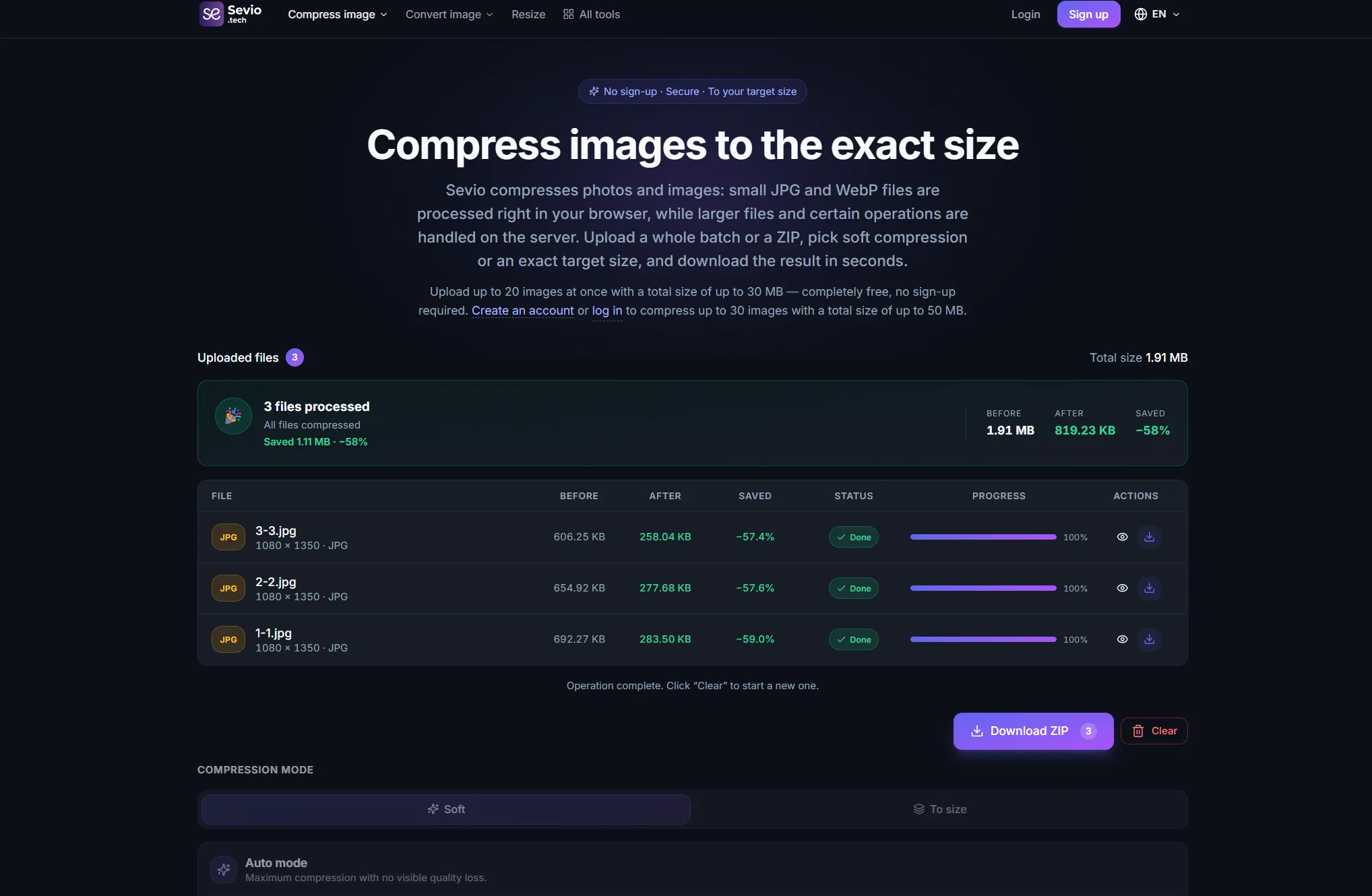
One privacy detail worth knowing: JPG and WebP files up to 20 MB are compressed right in the browser and never touch a server. That's both faster and safer — the photo never leaves your computer.
Format matters as much as the mode
Often the real size win comes not from compression itself but from switching formats:
- JPEG. Already a compressed photo format. Re-saving at high quality strips excess weight with no visible loss — just don't re-compress the same file over and over.
- PNG. Compresses poorly without loss, because it's built for graphics and transparency, not photos. A heavy PNG snapshot is better re-encoded as WebP — typically 5–10× smaller for the same picture.
- WebP / AVIF. Modern formats: the same visual result at a smaller size. A strong choice for websites and sharing.
When you actually need true lossless
There are cases where even invisible loss is unwelcome:
- screenshots with text, diagrams, logos, and line art with crisp edges;
- images you'll keep editing (every lossy re-save stacks up more loss);
- archival or reference master copies.
Here, choose a lossless format (optimized PNG or lossless WebP) and accept that the savings will be smaller. For everything else — photos, banners, website imagery — visually lossless compression wins.
How not to overdo it
- Always compare before and after. If gentle mode saves less than 20%, switching format (PNG → WebP) is often smarter than crushing quality.
- Compress the original, not an already-compressed file, so you don't stack up artifacts.
- For social media and websites, gentle mode is enough; squeezing a file to its limit only pays off when you're hitting a specific size cap, like a form that rejects anything over 2 MB.